
In Part 5, we laid out the playbook: establish a baseline, organize workloads intentionally, apply the right controls in the right order, and create accountability. It’s a sound sequence. But real problems don’t arrive labeled “Step 3.”
They arrive as a report that suddenly takes twenty seconds to load. As an executive asking why the AI pilot is slowing everything down. As a refresh that didn’t finish, on a morning when the capacity chart looks perfectly calm.
This post shows the playbook working on the kinds of situations that actually show up. These are three patterns we see again and again with customers. Each one is a composite drawn from many engagements, not any single client. As you read, notice which one sounds most like your team.
How to read each scenario
Each scenario follows the same structure. First comes the situation. Then what we’d look at first. Then how to tell which problem it really is. Then what we’d do, mapped back to the playbook. Last, the instinct to resist, because in each case there’s an obvious move that feels right and usually isn’t.
Scenario 1: The successful pilot that slows down in production
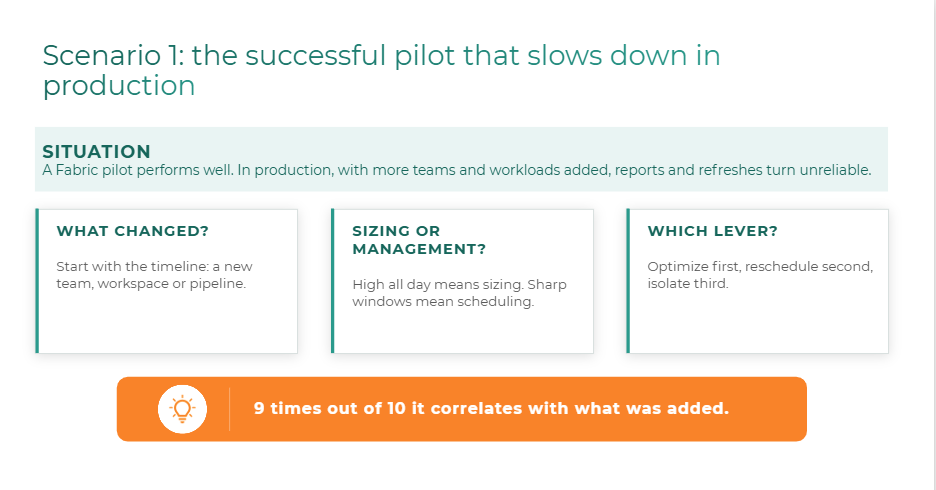
The situation. The Fabric pilot ran beautifully. Reports were fast, refreshes finished overnight, and leadership was happy. So it moved into production. More teams came on board and more workloads landed on the capacity. Now reports and refreshes are unreliable, and people are starting to say “Fabric is slow.”
If this sounds familiar, it should. It’s the pilot-to-production arc from Part 1, playing out exactly as described.
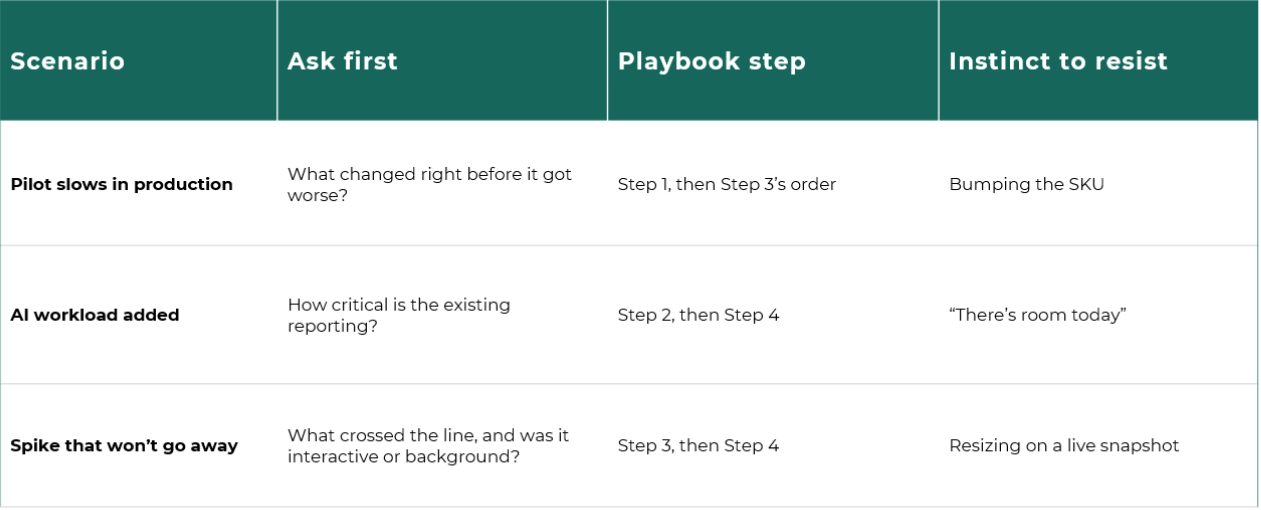
What we’d look at first: the timeline. What changed right before things got worse? A new workspace, a newly onboarded team, a pipeline added to the nightly schedule? In most cases the slowdown lines up with something that was added. The original workload rarely degraded on its own.
How to tell which problem it is. Apply the shape diagnostic from Part 2. If utilization runs high around the clock, you’re likely looking at a genuine sizing problem. If utilization is fine most of the day but spikes hard in specific windows, it’s a workload-management problem, such as a scheduling collision or a background job stepping on interactive hours.
What we’d do. Start with Step 1 and baseline who is consuming what, and when. Then work through Step 3 in order: optimize the workload first, reschedule second, isolate third, and resize only once you’ve ruled out the other three.
The instinct to resist: bumping the SKU. If the real cause is two jobs colliding at 7 a.m., a bigger capacity will make the symptom go away, and you’ll pay for it every month. Moving one job’s schedule might have fixed it for free.
Scenario 2: The AI workload that changes the capacity profile
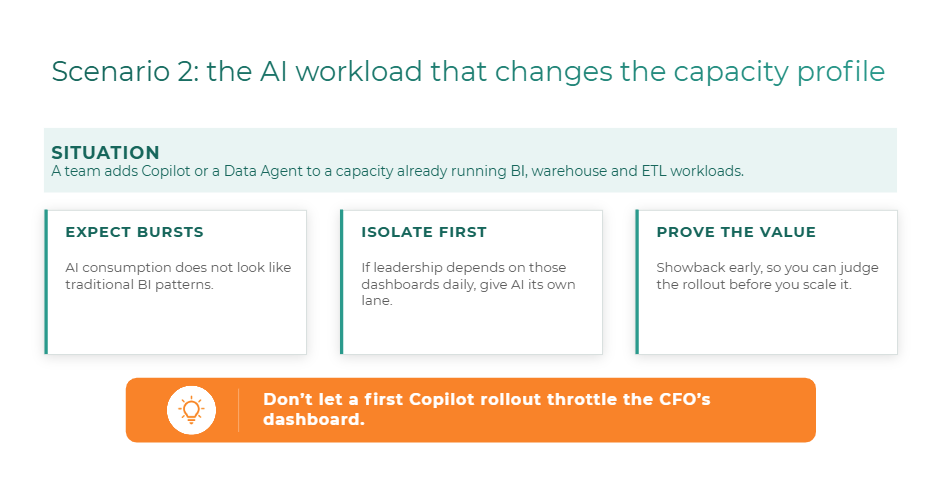
The situation. A team adds a Copilot or Fabric Data Agent use case to a capacity that’s already running BI, warehouse, and ETL workloads. Everyone wants the AI experience. Nobody has decided what it’s allowed to cost.
What we’d look at first: how critical the existing reporting is. Does leadership open those dashboards every morning? Are there reports the business can’t run without? The answer shapes almost everything that follows.
How to tell which problem it is. This scenario is different from the other two, because the risk isn’t in today’s numbers. AI consumption doesn’t follow traditional BI patterns. It’s bursty, it depends on how actively people use the agent, and early in a rollout you have no usage history to size against. The problem isn’t what you can see. It’s what you can’t predict yet.
What we’d do. This is Step 2 in action. If leadership depends on the existing dashboards daily, isolate the new AI workload first, and consolidate later once you have real usage data to decide with. Then apply Step 4 from day one. Put showback on the AI workload immediately, so you can answer the question every new workload eventually faces: is it generating enough value to justify what it consumes? You want that answer before you decide to scale the rollout, not after.
The instinct to resist: dropping it into the shared pool because there’s room today. There may well be room today. But you don’t want your first Copilot rollout to be the thing that throttles the CFO’s dashboard. That’s a hard way to launch an AI program, and a harder way to earn a second one.
Scenario 3: The throttling incident that outlives the spike
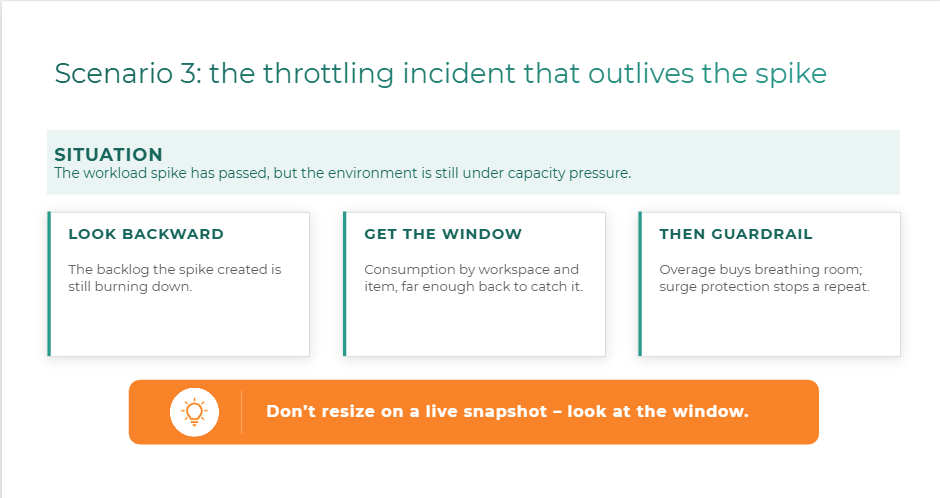
The situation. A workload spike happened, and it’s over. But the capacity is still under pressure, reports are still slow, and nobody can point to anything running right now that explains it.
You already know this one. It’s the Tuesday-morning story that has run through this series since Part 3. So rather than re-explain smoothing, here’s how the whole series comes together in a single incident.
What we’d look at first: the past, not the present. A live utilization snapshot won’t explain this, because the cause isn’t happening now. Pull a time-window view of consumption by workspace and item, reaching back far enough to catch the original spike. You’re looking for what actually pushed the capacity over its limit.
How to tell which problem it is. Find out whether the spike was interactive or background work, because that sets your recovery timeline. As we covered in Part 3, the same 250% overage clears in roughly 90 minutes if it’s interactive and roughly 36 hours if it’s background. And remember that Fabric Data Warehouse operations are classified as background, even when a person is waiting on the query.
What we’d do right now. In most cases, let the backlog clear. If the situation is genuinely urgent, capacity overage can buy breathing room by letting you pay for the excess instead of taking a hard rejection. Keep in mind that overage is billed at a premium rate. It’s a tool for a genuine crunch, not a standing fix.
What we’d do next. Find out why that job or report pattern created the spike in the first place, and work through the optimize, reschedule, isolate sequence. If it’s a background job that keeps running hot, surge protection can cap its consumption so it can’t drag interactive performance down again. It limits background use, but it doesn’t guarantee interactive users will never see a delay. Then close the loop with Step 4: give that workload a named owner, so the next time someone asks “whose job caused this?” there’s an immediate answer rather than a shrug.
The instinct to resist: resizing on a live snapshot, in either direction. Upgrading treats the symptom and leaves the cause in place. Downgrading because the numbers “look fine now” misreads the whole situation. Look at the window before you touch the SKU.
What the three scenarios have in common
On the surface these are three very different problems: a growth problem, an AI problem, and an incident. Underneath, they follow the same pattern.
- None of the right first moves was “buy more capacity.” In every case, resizing was either the last resort or the wrong move entirely.
- Each one started with a question, not a lever. What changed? What’s critical? What actually crossed the line? The answer to that question decided the fix.
- Each one ended with an owner. Fixes that nobody owns tend to come undone, one new workload at a time.
Which one is you?
Which one is you?
If one of these sounded uncomfortably familiar, here’s where to start:
- Scenario 1? Start with your baseline. Find out what changed before you decide what to fix.
- Scenario 2? Draw the boundary before you launch and put showback on the AI workload from day one.
- Scenario 3? Look backward before you touch the SKU.
Recognized your team in one of these? A Fabric Capacity Health Check works through that exact situation for your environment: what’s driving consumption, where the risk is emerging, and which actions to take first.
Next in the series: Recognizing your situation is the first step. Next, we’ll share five questions that test whether your team is ready for situations like these, along with a checklist you can bring into your next capacity review.
Watch the full webinar: Control Microsoft Fabric Costs: A FinOps Playbook for Capacity and Throttling is available on demand now.